
9 AI Photo Tricks That Turn Your Messy Camera Roll Into a Family Archive in Minutes

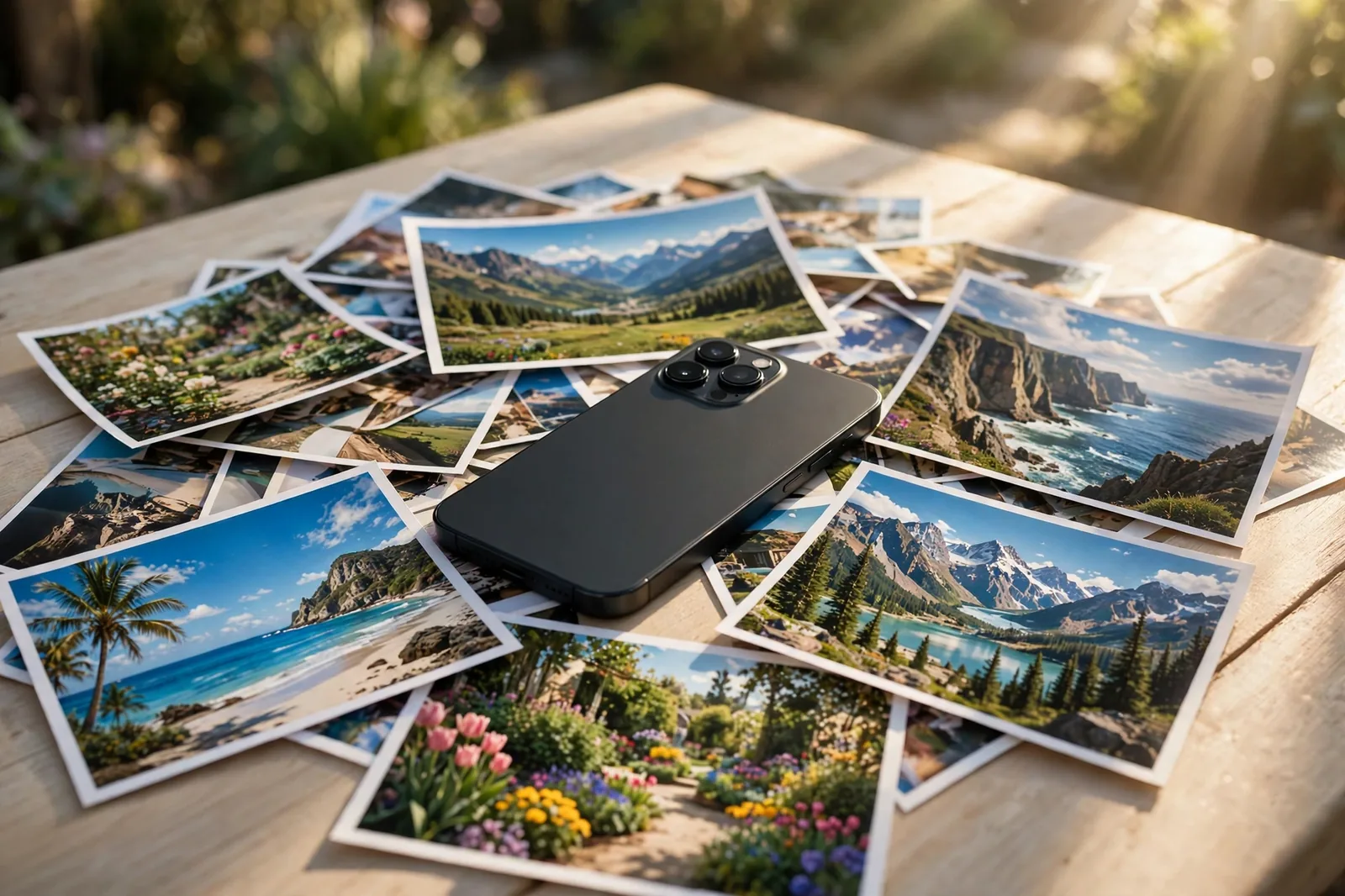
Your phone holds thousands of photos. Most of them sit there, unsorted, unshared, and slowly forgotten. The beach trip from three summers ago is buried under screenshots. The photo of your grandmother’s garden is somewhere below 400 pictures of receipts and parking spots.
That is exactly the kind of mess artificial intelligence is good at cleaning up. Not the flashy kind that writes essays or codes apps. The quiet, practical kind that already lives inside the photo app on your phone. In October 2026, Google rolled out a fresh set of AI features for Google Photos, including an AI assistant that finds, edits, and shares pictures from a single prompt. Older tools for restoring faded prints and erasing photobombers have also matured into one tap jobs.
This guide walks through nine tricks that turn a chaotic camera roll into something you actually enjoy opening. None of them require technical skill. Most of them take under a minute each. And every one of them works on photos you already have, not photos you still need to take.
The 9 tricks at a glance
Start with trick 1 today. It changes how you find everything else.
1. Ask for Any Photo in Plain Words

Forget scrolling. The single biggest change to photo apps in 2026 is that you can now talk to your library the way you would talk to a friend. Instead of remembering a date or an album name, you describe what you remember. “Show me the photos from the lake house last summer.” “Find the picture of the red cake.” “Show me every sunset from our road trip.”
Google’s Ask Photos feature works this way. It understands who is in a photo, where it was taken, and what is happening in it, then pulls up the matches. You can ask follow up questions if the first result is not quite right. In October 2026, Google also began rolling out Gemini integration inside the Photos app itself, so you can ask the assistant questions about your pictures and get answers drawn from what is in them.
Try this tonight. Open your photo app and type the most specific memory you can think of, not a date. The trick works best when you describe the scene: the place, the activity, the color of something in the frame. Vague searches return vague results. A search like “picnic blanket in the park” beats “park” every time.
One habit makes this ten times more useful. When you take photos at an event, snap one picture of something that names the day: a sign, a menu, a ticket. That single image becomes an anchor the AI can use to group everything around it.
2. Rescue Faded Prints From the Shoebox

Almost every family has a box like this. Prints from the 1970s and 1980s, edges curling, colors washed out, a crease running through someone’s smile. For years the only fix was an expensive professional service. Now free AI tools do the first pass in seconds.
The process is simple. Scan or photograph the print in bright, even light, then upload it to a restoration tool. The AI detects scratches, dust, and cracks, then rebuilds those areas from the pixels around them. It also reduces grain and repairs fading. Thin scratches usually vanish completely. Large tears may need a second pass, and a photo torn in half still needs a human.
Several free options are worth trying, and recent roundups rank them by how much you get before anyone asks for money. PhotoRestore.io runs entirely in the browser with no account and no watermark on its core tools, which makes it a good first stop for a whole box of prints. PicWish and Fotor offer free tiers with batch processing, handy when you have dozens of scans. MyHeritage enhances 10 photos free, though non subscribers will see a small watermark on the result. Always scan at the highest resolution you can, and keep the original scan untouched so you can try again with a different tool.
Work in this order: scan everything first, restore second, print third. Restoring one precious photo at a time feels rewarding, but scanning the whole box first means nothing gets lost if a print fades further while you wait.
3. Colorize Black and White Memories, Honestly

Colorizing an old black and white photo feels like time travel. A grandparent’s wedding portrait suddenly looks like it happened yesterday. The sky turns blue, the dress turns ivory, the garden turns green. It is genuinely moving, and it is also partly guesswork, which is worth saying out loud.
An AI colorizer does not recover the true colors of a scene. It predicts plausible ones based on millions of color photos it has seen. Grass is usually green. Skies are usually blue. But a dress that was actually red might come out blue, and a car that was cream might come out white. The result is a beautiful interpretation, not a recovered fact.
That distinction matters most for faces. Some tools now restore facial detail along with color, and the results can look startlingly real. Treat those faces as the tool’s best guess, not as a photograph of how someone truly looked. For family history, keep both versions: the original black and white scan as the record, and the colorized version as the keepsake.
When you colorize, start with the photo in the best condition. Heavy damage confuses the color prediction and produces muddy skin tones and strange color patches. Clean up scratches and fading first, then colorize, then judge the result at normal viewing size rather than zoomed in to 300 percent, where every flaw looks worse than it is.
4. Erase the Photobombers and Clutter

Every great photo seems to have one flaw: a stranger wandering into the background, a trash bin at the edge of the beach, a power line cutting across the sky. Google Photos’ Magic Eraser removes these in a few taps. Open the photo, tap Edit, choose Tools, then Magic Eraser. Circle or brush over the unwanted object and tap Erase. The AI fills the gap by studying the pixels around it, a technique called inpainting.
Simple backgrounds are where this tool shines. Sand, grass, pavement, and sky fill in almost perfectly. A stranger on an empty beach can vanish so cleanly that nobody would guess they were ever there. Busy backgrounds are harder. A crowded street or a patterned fabric leaves seams that show on close inspection, so zoom in and run a second pass over any smudgy patch.
Google removed the Google One subscription requirement for Magic Eraser a couple of years ago, so it is now available to all Google Photos users, though some devices cap the number of free erases per month. The same idea exists in other apps too, including Apple’s cleanup tool on newer iPhones, so check your own phone’s editor before downloading anything new.
One rule keeps this honest and useful: erase distractions, not history. Removing a trash bin improves a photo. Removing a person who was actually there changes the memory. Save every edit as a copy so the original stays intact, and you can always go back.
What AI restoration can and cannot fix
Fixes well: thin scratches, dust, fading, grain, small stains, mild blur
Sometimes: creases, small tears, color casts, low resolution
Still needs a human: photos torn in half, missing faces, heavy water damage, true original colors
5. Restyle Everyday Shots With Vintage Looks

Not every edit needs to fix a flaw. Some of the most enjoyable AI photo features simply change the mood. Google Photos’ new Moods feature gives pictures a vintage finish, with styles like 35mm film and 2000s digicam that adapt to each image rather than slapping the same filter over everything. The result looks less like a filter and more like the photo was taken in a different era.
The trick is restraint. One vintage look across a whole set of holiday photos feels like a coherent album. A different wild effect on every single photo feels like a demo reel. Pick one style per occasion and stick with it, and keep the original safe. Google’s own editing flow makes a copy for edits and leaves the original untouched, which is exactly the behavior you want from any tool you trust with memories.
This is also the fastest way to make a boring photo interesting. A plain snapshot of a garden becomes a frame worthy print once the light is warmed and the grain softened. A dull gray afternoon shot gains the golden tone it never had. You are not faking a memory here. You are presenting it the way it felt, which is what photo editing has always been for.
Try a small experiment. Take five ordinary photos from the last month and restyle them all in the same vintage look. Print the best one. Most people are surprised how much better a photo feels once it stops looking like a phone screenshot and starts looking like a photograph.
6. Turn Photos Into Cards and Gifts

The most underused feature of modern photo apps is the one that turns pictures into things people can hold. Google Photos’ new Remix templates turn everyday pictures into birthday cards, photo booth strips, and red carpet style portraits. Fifteen templates arrived with the October 2026 rollout, and they are the kind of feature that sounds silly until you send one to your mother and she frames it.
A photo card beats a text message for every occasion that matters: birthdays, anniversaries, graduations, and the plain Tuesday when someone needs cheering up. The formula is simple. Pick a photo with one clear subject and plenty of space around it, so the card layout has room to breathe. Add a short message in your own words, not a generated one. Print it if you can, because a physical card stays on a fridge long after a message scrolls away.
The same thinking applies to gifts. A restored family photo printed large is a better present than almost anything you can buy, precisely because it cannot be bought. Pair it with the story behind it, written on the back or on a card, and you have given someone a piece of their own history back.
Start with one person and one photo. Find their favorite picture in your library using trick 1, restore it with trick 2 if it needs it, and turn it into a card. You will understand in about ten minutes why this trick is on the list.
7. Let AI Build the Album, Then Check Its Work

Trick 7, the album builder. Here is the trick that saves the most time of all: stop organizing photos by hand. Google Photos already groups pictures by place, by face, and by event, and its newest AI assistant goes further. Ask it to create an album from a trip, an occasion, or a theme, and it gathers the matching pictures in one place. It can also edit and share from a single prompt, and it asks before sharing anything, which is an important safeguard.
Auto albums are never perfect, and that is fine. Their job is to do 90 percent of the sorting so you can spend your time on the 10 percent that needs judgment: removing the duplicates, cutting the blurry shots, and picking the cover photo that actually represents the day. Accept the draft, spend five minutes pruning it, and you have an album that would have taken an hour to build by hand.
Trick 8, the closet catalog. Two newer features show where this is heading. Wardrobe scans your photos from the past four years and catalogs the clothes you were wearing, sorted into tops, bottoms, outerwear, shoes, and accessories, so you can mix and match outfits from your own closet. It is rolling out in the US, India, and Brazil, and needs over 1,000 photos of you to work. Gemini Spark, the assistant that edits and shares from a single prompt, reportedly requires a Google AI Pro or Ultra subscription, so check what your plan includes before you lean on it.
Trick 9, the privacy check. Before you share any album, run one final check that no AI does for you. Open it once from start to finish and look for three things: a private document accidentally caught in a photo, a license plate or address visible in the background, and any picture that was meant for one person but not for the group. Google’s Markup tool now includes a Redact pen that blurs sensitive details like plates and addresses, and a thirty second pass with it prevents the most common sharing regret.
Your 10 minute photo rescue plan
- Minutes 0 to 2: Ask your photo app for one memory in plain words.
- Minutes 2 to 5: Scan three old prints in bright, even light.
- Minutes 5 to 8: Run one restoration and one eraser edit.
- Minutes 8 to 10: Share the best result with one person who will love it.
Do this once a week and your archive transforms itself within a month.
Your camera roll is not a storage problem. It is a memory collection waiting for someone to pay attention to it. The tools above do the heavy lifting, but the real trick is simpler than any of them: open the app, find one photo that matters, and do something with it. Restore it, share it, print it, or turn it into a card.
Start with the oldest photo you love and the newest photo you forgot. Between those two pictures sits the whole reason cameras exist. The AI just makes it easier to get there, one tap at a time, without needing to learn a single piece of software.
Sources for the features described above include Gadgets 360 on the Gemini Photos rollout, Business Today on Gemini Personal Intelligence, Rankite’s free restoration roundup, PixelBin’s restoration tool comparison, and How-To Geek on Magic Eraser availability.