ChatGPT Just Learned to Make GIFs: 9 Tricks That Turn Your Photos Into Moving Moments

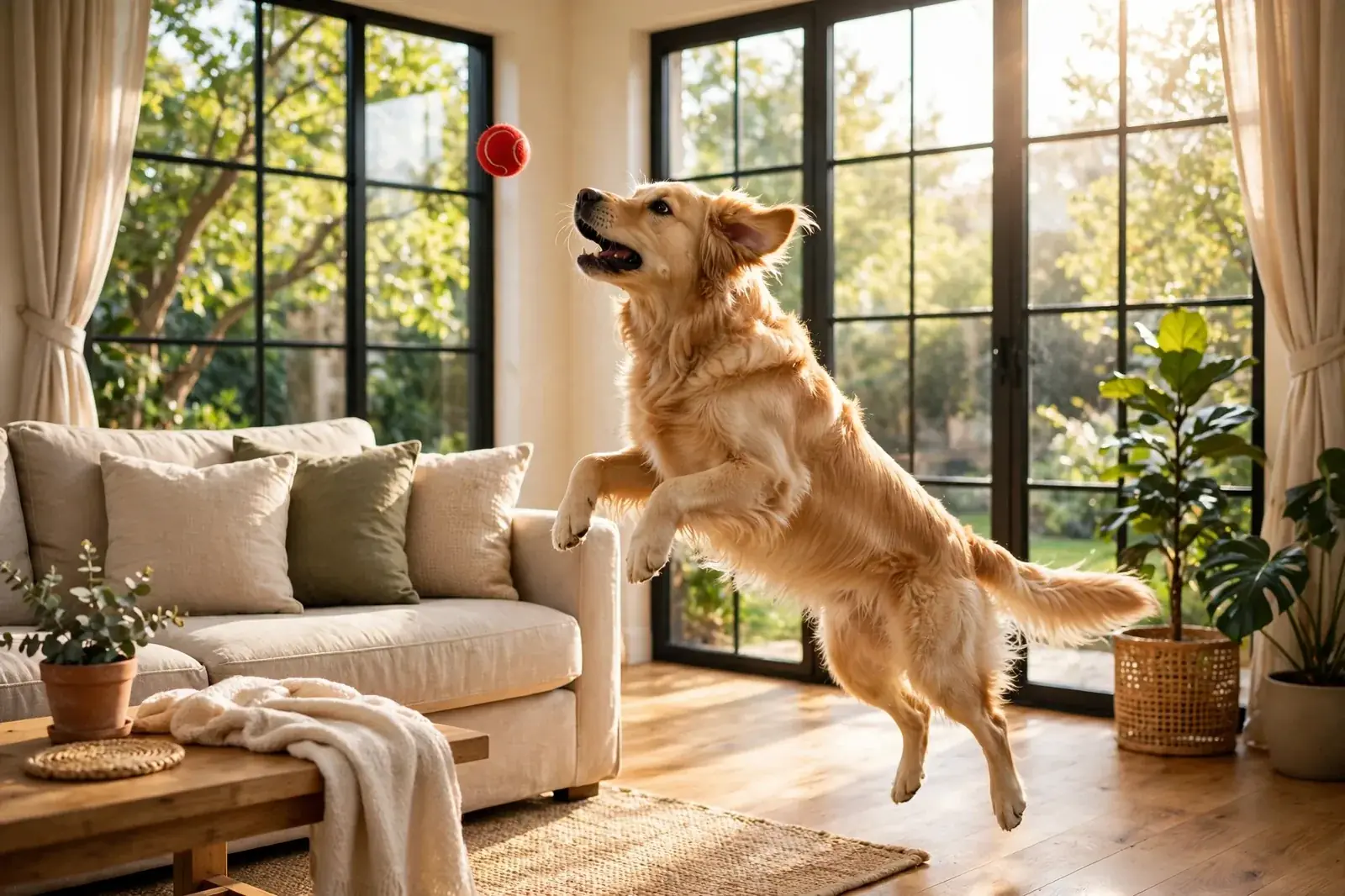
Your camera roll is full of still photos that almost move. A dog mid leap. A birthday candle just before the wish. A product shot that looks great but sits there like a statue. On November 4, 2026, OpenAI launched Images 2.6, and the headline feature is simple: ChatGPT can now turn a text prompt or a photo into an animated GIF.
This is not a video tool in disguise. A GIF is a short loop, a few seconds of motion that plays again and again. People watch a loop without pressing play, and a good one gets watched three times before they even notice.
The update is live in ChatGPT and Codex on desktop, mobile, and web, and OpenAI says it is available across all subscription tiers. That includes the free plan. OpenAI also says image generation is now 50 percent faster than before, and that people now create more than 4 billion images a week across ChatGPT, Codex, and the API. That is up from 3 billion a week in September.
But a new button does not guarantee a good GIF. Most first attempts come out wobbly, too fast, or with a face that changes halfway through the loop. The nine tricks below fix all three problems, and they start with the photo you already have.
Images 2.6 at a glance
- Launched: November 4, 2026, in ChatGPT, Codex, and the API
- New trick: animated GIFs from a text prompt, a photo, or a sketch
- Speed: OpenAI says images generate 50% faster than before
- Who gets it: every subscription tier, including free, on desktop, mobile, and web
- Controls: change the playback speed and edit single frames
- Scale: more than 4 billion images a week, up from 3 billion in September
1. Start With a Photo That Has One Clear Star

Every good GIF has one thing moving and everything else holding still. That is trick one. Pick a photo where a single subject fills the frame and the background is calm. A dog jumping for a ball works. A crowded street scene with ten people walking in different directions does not.
The reason is simple. A GIF is a short loop, so the eye needs one place to land. When three things move at once, the loop looks like static. When one thing moves, it looks like a moment. Scroll through your photos and look for a clear subject, good light, and a background that will not fight for attention.
Trick two sits right next to it. Describe the motion, not the photo. Do not write “make this photo move.” Write what moves, how it moves, and where it ends. “The dog jumps up, catches the ball, and lands back on the rug” gives the model a beginning, a middle, and an end. “Make it move” gives it a guess.
Keep the motion small. A head tilt, a wave, a blink, a jump, a spin. Small motion keeps the loop smooth and the subject looking like itself.
Check the photo at full size before you upload it. If the subject is blurry or half cut off at the edge, the GIF will be too. A sharp photo with one clear star is the cheapest quality upgrade in this whole list, and it costs nothing.
2. Write the Prompt Like You Are Directing a Tiny Movie
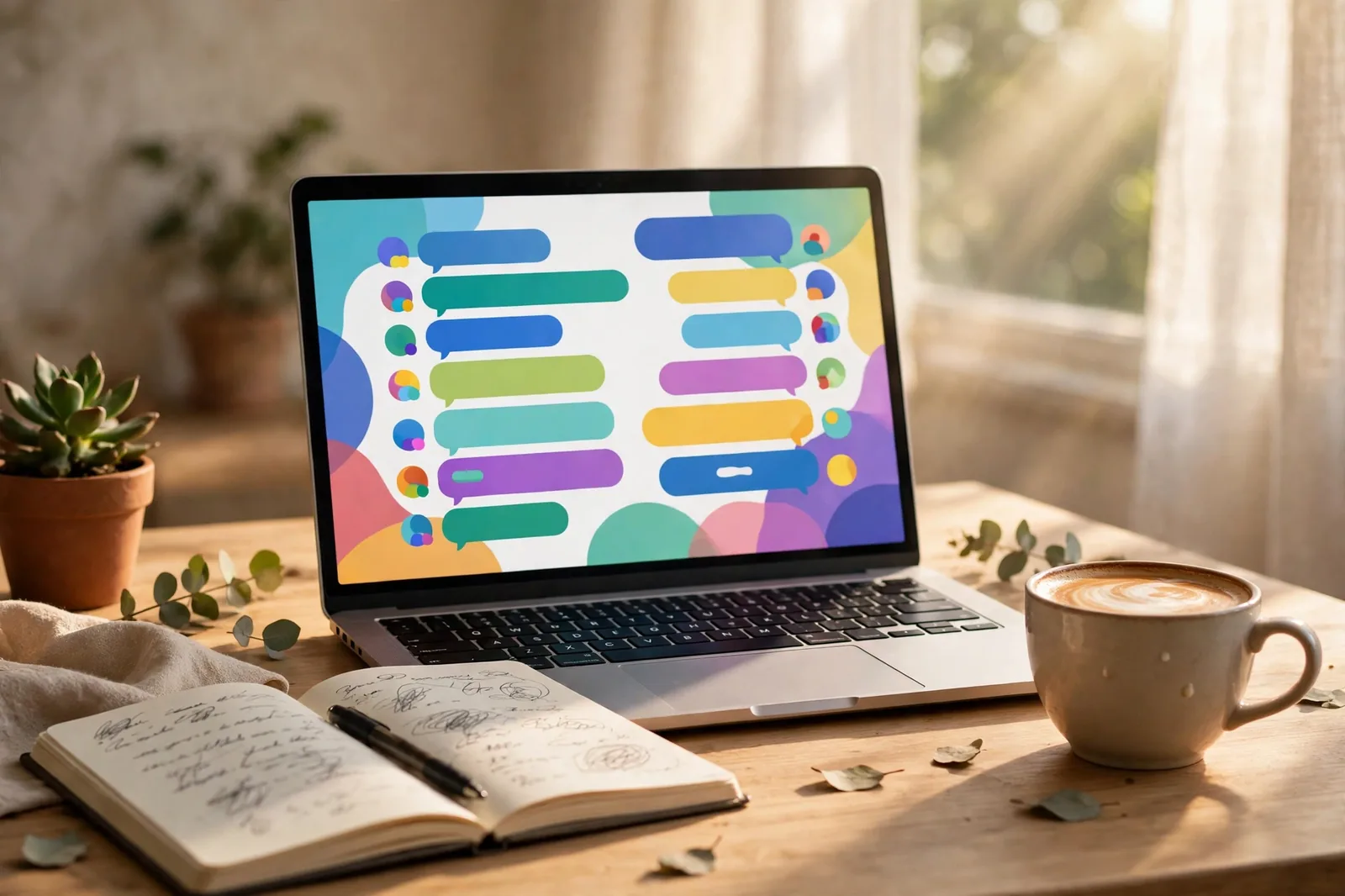
Trick three is the word itself. Say GIF in your prompt, out loud, in plain words. “Make a GIF of this photo” beats “animate this” every time, because the model needs to know you want a looping animation and not a single new image. Add the word “loop” too, so it knows the end should flow back into the start.
OpenAI’s own demo prompt was almost comically simple. The Verge reported the demo request as “can you make a gif of a cat dancing?” That worked because the request named the motion, the subject, and the format in one short sentence. You can do the same with any photo.
Build your prompt in three short parts. First, name the format: “Make a looping GIF.” Second, name the subject and the motion: “My cat stands on its hind legs and waves one paw.” Third, name what must not change: “Keep the cat, the rug, and the window exactly the same. Only the cat moves.”
That third part matters more than the first two. Image models love to improve things you did not ask them to change. A sentence that freezes the background is the difference between a clean loop and a room that slowly melts across six frames.
Try one motion per prompt. If you want a wave and a head tilt and a tail wag, pick the wave first. Get a clean loop, then ask for the next version with the second motion added. Stacking three motions into one request is how you get a cat with five legs.
3. Animate a Product Shot That Still Sells

Trick four is the one small businesses will use most. OpenAI pitches this exact use case: turn a product shot into an eye catching loop. A jar of honey with light moving across it. A candle flame flickering. A mug with steam curling up. The product stays still, the world around it breathes.
Upload your best product photo, the one with clean light and no clutter, and ask for motion in the background only. “Turn this product photo into a smooth looping GIF. Keep the jar, the label, and the colors exactly as they are. Only the sunlight moves across the counter.”
Here is the warning that comes with it. AI models love to rewrite small print. Lilach Bullock’s advice for small businesses is blunt on this point: check the label at full size after every generation, because a misspelled ingredient on a product you sell is not a funny mistake. Zoom in. Read every word. If one letter is wrong, regenerate or fix that frame.
Keep the loop gentle. A slow shimmer sells better than a fast spin. Customers trust a product that looks steady, and a wild animation makes a real product look fake. Two seconds of soft motion, repeated cleanly, will outperform ten seconds of chaos in a feed.
Use it where loops already live. A GIF works in an email header, a product page, a social post, and a chat with a customer.
4. Turn a Sketch Into a Moving Character
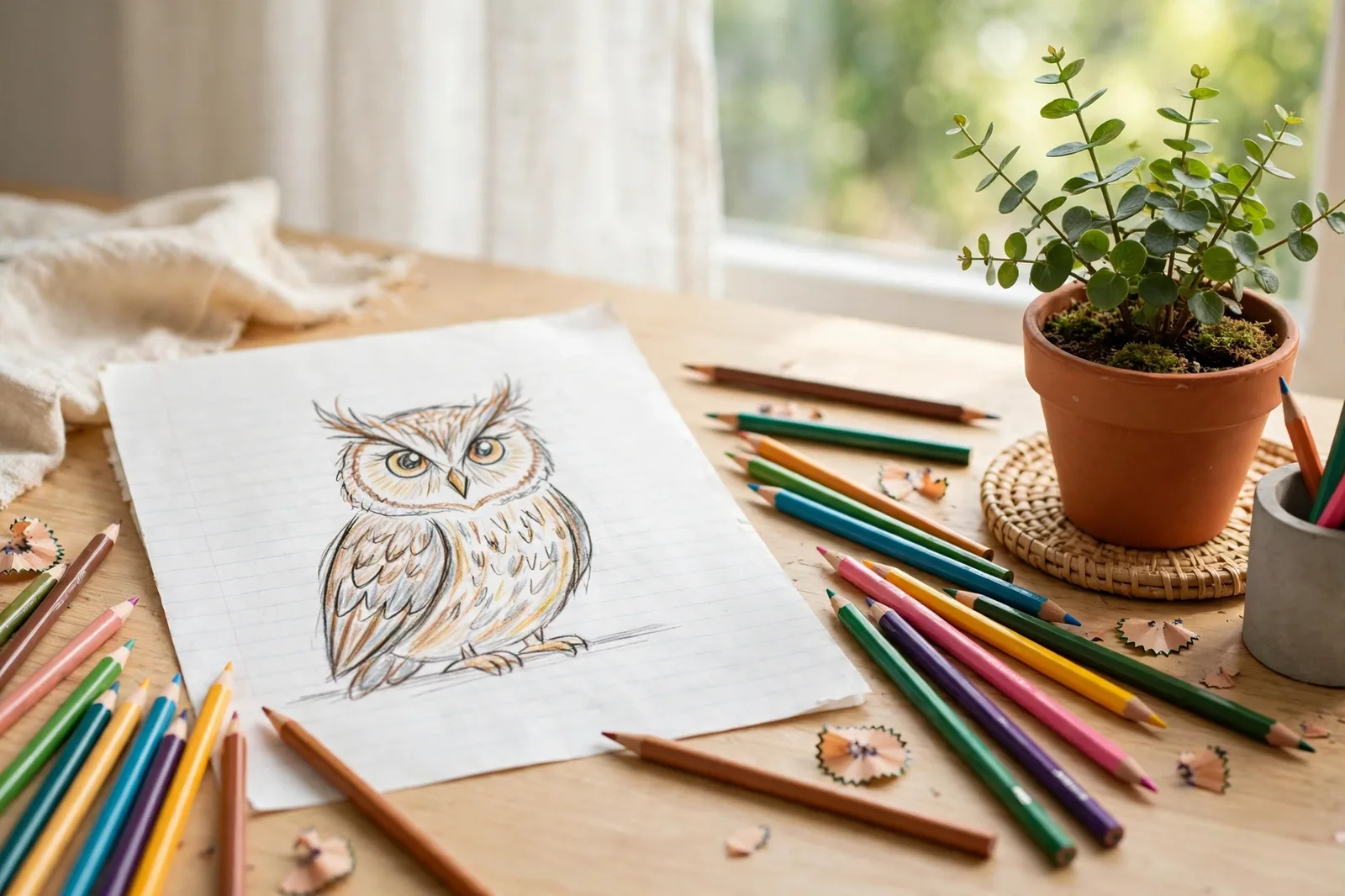
Trick five is the most fun in the whole update, and it needs no photo at all. OpenAI says even a simple sketch can become an expressive animated character. Draw a doodle on paper, photograph it, upload it, and ask ChatGPT to bring it to life.
The owl sketch in OpenAI’s own announcement shows how little you need. A pen drawing on lined paper became a character, because the model had a clear shape to work from. A doodle with a clear outline and a blank background animates far better than a busy drawing full of shading.
Give the character one motion and one mood. “This owl blinks slowly, then tilts its head, looking curious” is a complete direction. Add the mood in one word, like curious, sleepy, or excited, and the model has enough to make the motion feel like a personality instead of a twitch.
This is where storyboards start. Animators and marketers can sketch a scene, animate it as a GIF, and check whether the movement works before spending money on real video. A ten second sketch test can save a full day of production on an idea that was never going to move well.
A child’s drawing of a monster that waves, a mascot sketch for a school fair, a logo doodle that blinks. The barrier is a pencil and a phone camera, not a design degree.
A prompt recipe for a clean loop
- Format first: “Make a looping GIF”
- One motion: name the subject and the single move it makes
- Freeze the rest: “Keep everything else exactly the same”
- Set the mood: one word, like calm, playful, or curious
- Check the loop: watch it three times and look for jumps at the seam
5. Tune the Speed Until the Loop Feels Right

Trick six is the speed control, and it is the fastest fix in the whole feature. After ChatGPT makes your GIF, you can change how fast it plays. Too fast and a wave looks like a twitch. Too slow and a jump looks like a dream. The right speed is the one where the motion looks like real life at half attention.
Start slow and work up. A gentle motion like steam rising or a curtain moving wants a slow pace. A playful motion like a jump or a spin wants a quicker one. Watch the loop three times at each speed before you decide, because the first viewing always feels faster than it is.
Speed also hides small flaws. A frame that jumps slightly at full speed can look smooth when slowed down, because the eye has time to follow it. Change only the speed between tests, nothing else, so you know what fixed it.
Think about where the GIF will live. A loop in a fast scrolling feed needs a slightly quicker pace to register in the half second before a thumb moves on. A loop in an email or a chat can be slower, because the viewer is already looking at it. One GIF, two speeds, two very different results.
6. Fix One Frame Instead of Starting Over

Trick seven saves the most time. Images 2.6 lets you look at the individual frames of a GIF and edit a single one. That matters because most bad GIFs have exactly one bad frame. A hand that bends wrong for a tenth of a second. An eye that closes in frame four and never opens again. The rest of the loop is fine.
Step through the frames slowly and find the culprit. It is usually the frame where the motion changes direction, the top of a jump or the far end of a wave, because that is where the model has to invent the most. Note what is wrong in plain words: “In this frame the left ear is missing” is a fixable instruction.
Ask for a fix to that frame only, and tell the model to leave the other frames alone. Regenerating the whole GIF because one frame is wrong is like repainting a house because one window is dirty. Small edits keep the good frames you already have.
There is a limit worth knowing. OpenAI notes that edits are steadier in Images 2.6, with characters and details holding up better across rounds, but it also admits that selected areas are not always precise and changes can spread beyond the spot you marked. If a frame fix changes the frame next to it, step back and fix the pair together.
Keep a simple rule for yourself. One frame wrong means edit the frame. Three frames wrong means the prompt was wrong, so rewrite the prompt. Every frame wrong means the photo was wrong, so go back to trick one and pick a better starting image.
7. Save Your Star and Share the Loop
Trick eight is the quiet upgrade that makes the other seven repeatable. Images 2.6 adds saved reference images. You can save a photo of a person, a pet, or a character and reuse it later without uploading it again. In ChatGPT you call a saved reference by typing @ followed by the name you gave it, and the model brings the same subject into the new image.
This is what fixes the oldest complaint about AI images: the same character looking like a different person in every picture. Save your mascot once, name it clearly, and use it in every GIF you make for a campaign.
Name your references like a human will read them later. “Milo the fox mascot” beats “ref 1” by a mile, because six months from now you will not remember what ref 1 was.
Trick nine is the share itself, and it has one job: check the loop before anyone else sees it. Watch it on your phone, not just on your computer, because that is where most people will see it. Check the label, the face, and the seam where the loop restarts. If you can spot the jump, your audience will spot it too.
Before you post: the 60 second check
- Watch it three times: look for a jump where the loop restarts
- Read the label: zoom in and check every word at full size
- Check the face: same eyes, same shape in the first and last frames
- Test it on your phone: that is where most people will see it
- One motion only: if two things fight for attention, cut one
The best GIFs from Images 2.6 will not look like technology demos. They will look like small moments that happen to move: a pet that waves, a product that glows, a doodle that blinks. The tool is new, but the skill is old. Pick one clear subject, ask for one small motion, and check the loop before you share it.
OpenAI built the feature for everyone, on every plan, and that is the real change here.
One honest note before you start. The GIF button is still rolling out, so if your account does not show it yet, that is a rollout delay, not a mistake on your end. Start with the photo that made you smile in the first place. That is the one most likely to make someone else smile too.