ChatGPT Can Now Turn Your Photos Into GIFs: 9 Tricks to Try Before Everyone Else Does

Your camera roll is full of photos that almost move. The dog mid-wag. The coffee still steaming. The sketch you drew in five minutes and never finished. Until this month, turning any of those into a moving image meant opening a separate app, cutting frames by hand, and hoping the loop did not stutter.
That changed on November 4, 2026. OpenAI released ChatGPT Images 2.6, and the headline feature is simple to describe: ChatGPT can now turn a text prompt or an uploaded photo into a looping animated GIF, right inside an ordinary chat. You can change the playback speed, fix single frames, and share the result when it looks right.
The update reaches ChatGPT on every subscription tier, including Free, on web, desktop, and mobile, and it also lands in Codex and the developer API. OpenAI says images now generate 50 percent faster than before, and users across ChatGPT and the API now create more than 4 billion images a week. That is the context. What matters for you is the practical part: nine small tricks that separate a GIF people watch twice from one that looks broken on the first loop.
This guide walks through all nine. Each one comes from OpenAI’s own announcement and help pages, plus hands-on tests published by early users in the first week. Nothing here needs a paid plan, a plugin, or any editing software.
1. Check Whether GIFs Have Reached Your Account Yet

Trick 1: check the rollout before you blame your prompt. The GIF tool is still rolling out gradually, and OpenAI has published no schedule for when every account gets it. The faster Images 2.6 model is available on all tiers, but the GIF option can arrive later than the speed boost.
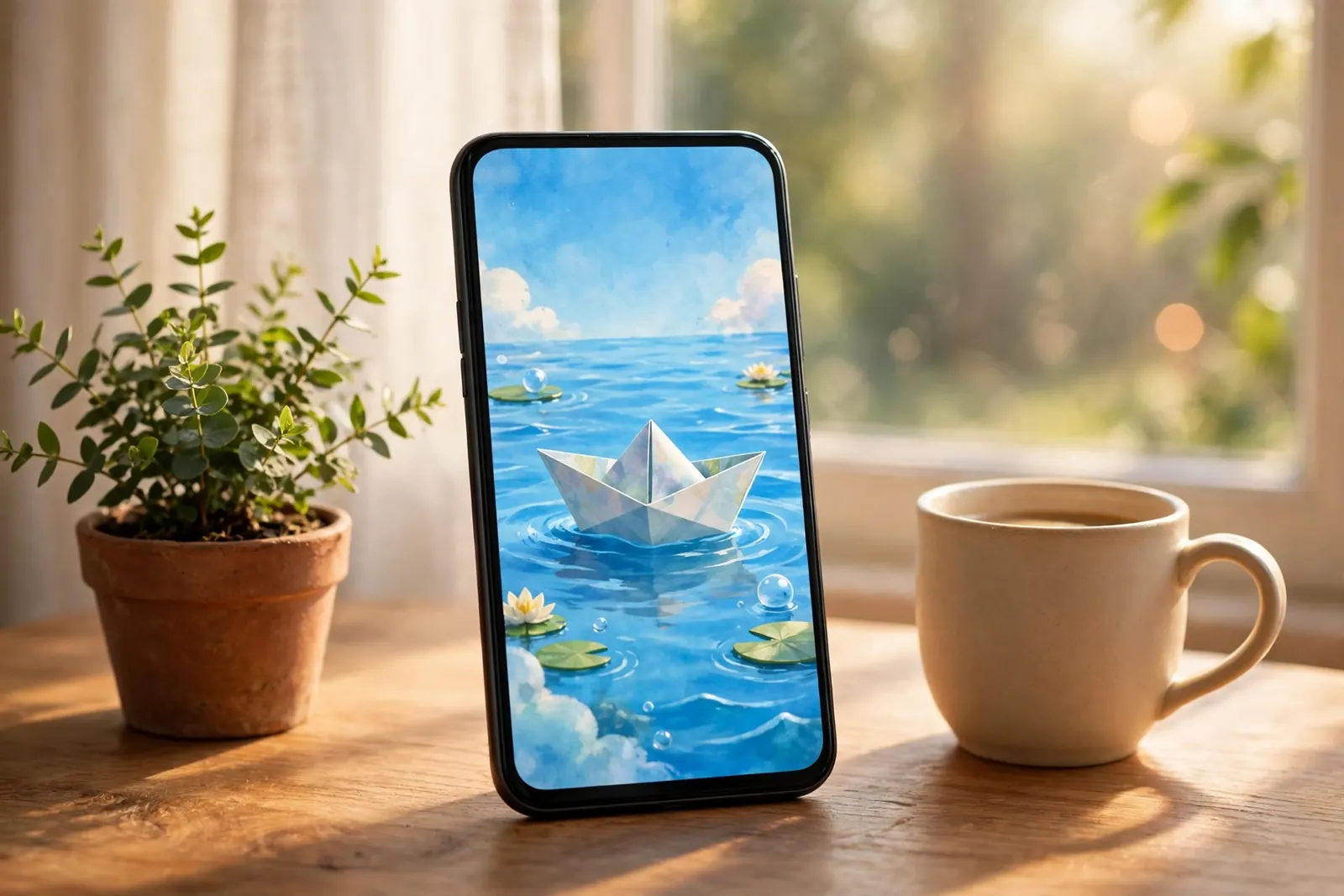
Here is how to tell where you stand. Open a chat and ask for a looping GIF of a paper boat bobbing on the water. That is OpenAI’s own example prompt. If a moving GIF comes back, you have the feature. If ChatGPT returns a set of separate still frames instead, the tool has not reached your account yet.
Do not rewrite your prompt five times when stills come back. Early testers found exactly this pattern, and no wording fix turned stills into a GIF. Wait a day or two and try again. The same request can work fine once the rollout reaches you, with nothing about your prompt changed at all.
One more check costs nothing. Make sure you are on web, desktop, or mobile with the latest app version, since the feature is rolling out across all three. If it still does not appear, patience is the only fix that works.
2. Turn Any Photo Into a GIF With One Sentence
Trick 2: ask for one clear motion, and nothing else. Upload a photo, then tell ChatGPT to animate it as a looping GIF. Name the single thing that should move. A dog’s tail wags. A cat’s ears twitch. A flag ripples. That is the whole request, and short requests work best.
The reason is simple. These are short loops, not videos. A GIF built from a still photo usually runs about 1.8 seconds by default, which is 9 frames shown for 200 ms each. One gesture fits inside that window. A whole storyline does not.
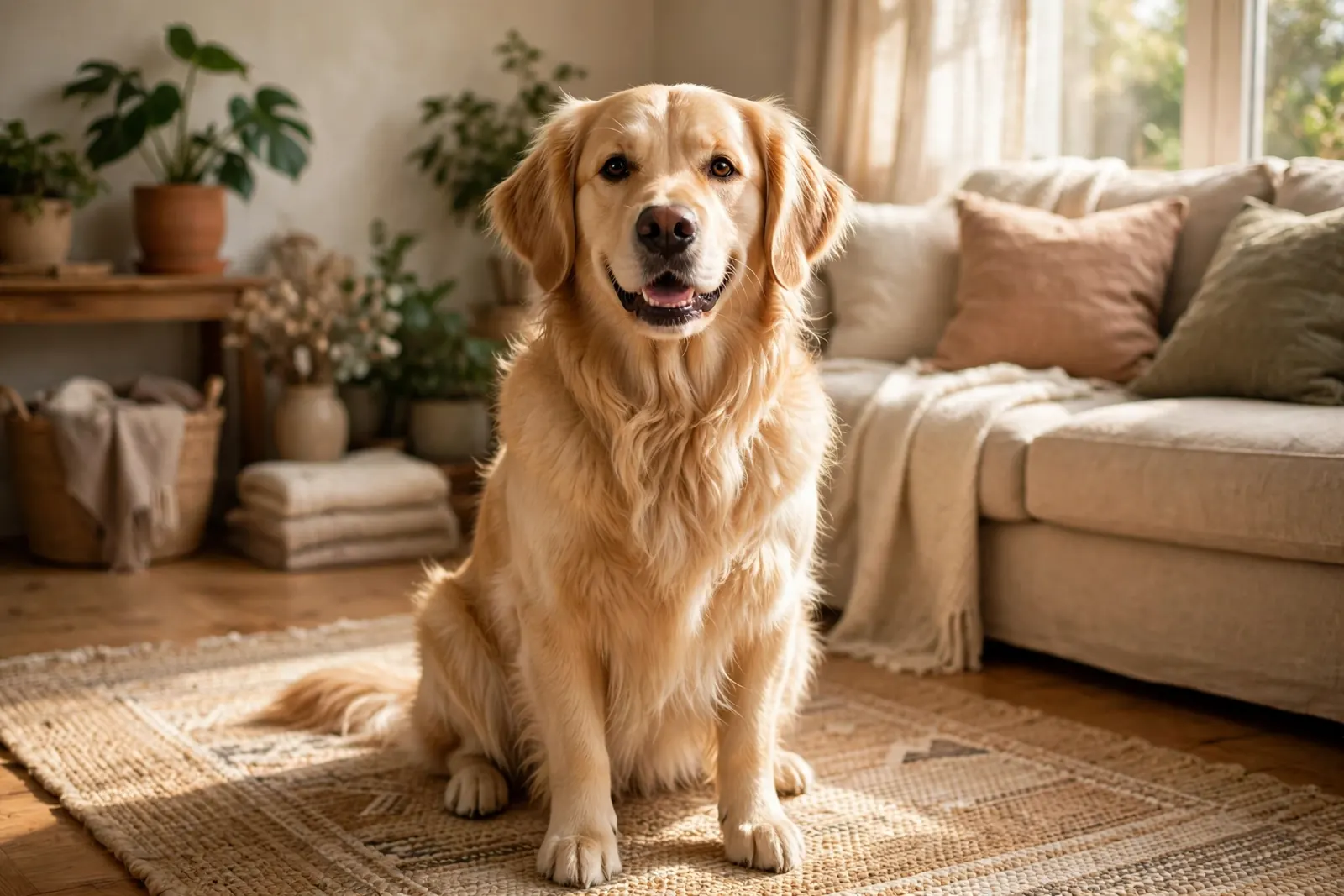
Try it with a pet photo first, since pets forgive a lot. Upload the picture and write something like: “Animate this photo as a looping GIF. My dog’s tail wags and its ears twitch. The background stays still.” Then watch what comes back. If the tail moves and the room holds steady, you have the feel of it.
Trick 3: freeze everything except the moving part. Say what stays still in the same sentence. “Keep the camera fixed and the background still” is the phrase that shows up again and again in prompts that work. Without it, the model may drift the whole scene, and the loop starts to swim.
Product photos reward this trick most. A mug that turns slowly in place, with the table and light untouched, looks like a small ad. A whole scene that shifts looks like a mistake. One moving thing is a GIF. Everything moving is a mess.
3. Wake Up a Sketch or Doodle

Trick 4: animate the drawing, not just the photo. You do not need a camera to use this feature. Upload a sketch, or draw one inside the ChatGPT mobile app, and ask ChatGPT to bring it to life. OpenAI’s own launch example uses a sketch of a character that waves, then returns to its starting pose.
Rough drawings work surprisingly well. A stick figure, a doodle in the margin, a mascot scribbled on a napkin: all of them are fair game. The model reads the lines you drew and moves them, instead of redrawing your character into something polished and strange. Tell it to keep the line style and colors exactly as drawn, and it usually listens.
On mobile, the flow is even shorter. Tap the @ key in the message box, choose Sketch, draw with your finger, and tap the checkmark. Then add the motion in words. A parent can turn a child’s drawing into a waving, nodding character in under a minute, and that is the kind of small delight this feature is built for.
Keep the motion tiny here too. A wave, a nod, a blink. Sketches have less detail for the model to hold onto, so a big sweeping movement can pull the drawing apart frame by frame. Small moves keep the character looking like yours.
4. Use the Three-Part Prompt That Makes Smooth Loops
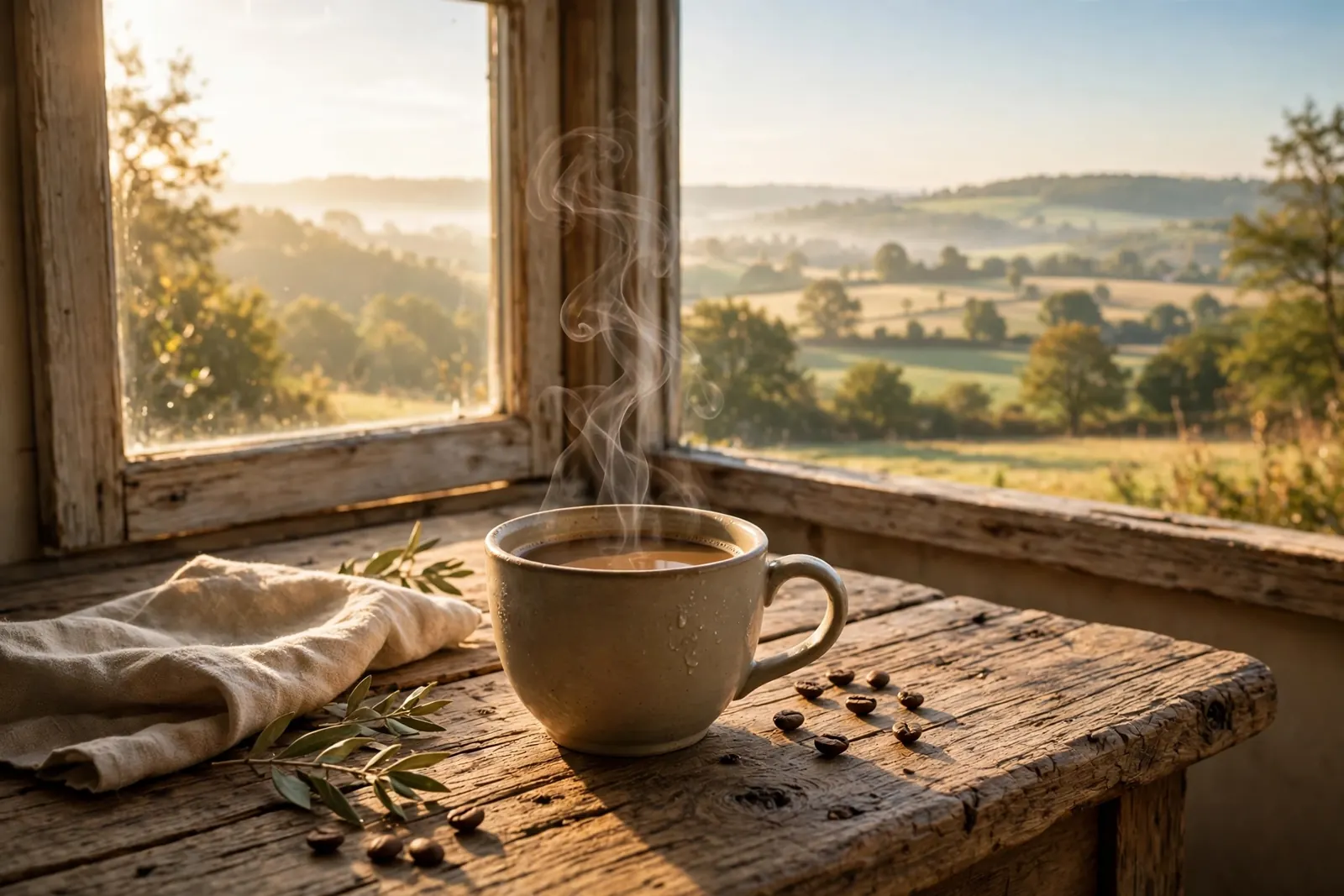
Trick 5: build every prompt from subject, motion, and loop ending. This is the formula OpenAI’s own guidance points to, and it is the single biggest upgrade most people can make. Name the subject, describe the motion, then describe how the loop ends. Three parts, one sentence each if you like.
A working example looks like this: “Make a looping GIF of a steaming cup of coffee on a wooden table. The steam rises slowly and curls. The last frame flows back into the first for a seamless loop.” Each part does a job. The subject sets the scene. The motion sets the action. The ending tells the model the loop must close cleanly, instead of jumping back to the start with a visible snap.
For tighter control, add numbers. Ask for a frame count and a time per frame, such as 12 frames at 120 ms each, and name the shape you want, such as square or vertical 3:4. Tests published in the first week found ChatGPT followed all three when they were stated plainly. Fewer frames keep faces and detail sharp. More frames suit quick motion like a bounce or a spin.
There is one number worth memorizing. The default is 9 frames at 200 ms per frame, which adds up to a 1.8 second loop. If your GIF feels rushed, ask for more frames or longer ones. If it feels choppy, ask for fewer. You are tuning a flipbook, and the page count is yours to set.
5. Fix One Frame Instead of Starting Over

Trick 6: edit the frame that is wrong, and leave the rest alone. Once a GIF arrives, you can step through it frame by frame and change a single frame instead of regenerating the whole thing. That is a quiet superpower. A blink that lands wrong, a paw that bends oddly, a background wobble in frame seven: fix that frame and keep the eight good ones.
Describe the fix in the same chat, in plain words. “The motion is too fast” or “keep the same framing from start to finish” are the kinds of notes that work. You can also pin a comment to a specific frame. The model redraws the GIF with your note applied, so check the result again before you share it.
Trick 7: set the speed after the GIF exists. Open the finished GIF and use the speed control to slow it down or speed it up. Reports put the range at half speed to double speed, and the change retimes the frames without redrawing anything. A wave that feels frantic at full speed can feel charming at half speed, and you learn that in two seconds instead of two fresh generations.
One habit saves the most time here. Watch the full loop twice before you ask for any change. The first watch shows you the obvious flaw. The second watch shows you whether the flaw actually matters, or whether your eye just needed a second pass. Half of all “fix it” requests disappear on the second viewing.
6. Save a Reference Photo and Call It Back by Name

Trick 8: save the photo once, then reuse it by name. Images 2.6 adds saved reference images alongside GIFs, and this is the feature that pays off over weeks instead of minutes. Upload a photo of your pet, your product, or a recurring character, save it under a name, and call it back later by typing @ and that name in a new chat. No more re-uploading the same picture every time.
That matters because consistency is the hard part of AI images. A mascot that looks slightly different in every picture is not a mascot, it is a stranger. A saved reference keeps the same face, the same colors, and the same shape across chats, so a GIF made on Tuesday matches the one you made last Friday.
Small sellers get the most from this. Save one clean product shot, then animate it in different ways for different posts: a slow turn for a listing, a gentle bob for a story, a sparkle for a sale. The product stays identical. Only the motion changes, and your feed starts to look like it was planned.
Set the reference up before you need it. Save the best photo of the subject on a clean background, with good light and nothing else competing for attention. A tidy reference makes every future GIF easier, and a cluttered one makes every future GIF a small repair job.
7. Know Where GIFs Shine and Where They Fall Short

Trick 9: pick the right job for a loop, and skip the wrong ones. GIFs shine at small, simple motion. A waving mascot, a steaming cup, a product turning slowly, a doodle nodding hello. They are cheap, fast, and easy to share in a chat or a post. For stickers, icons, badges, and small product moves, one-step GIFs are enough, and they cost less time than a video.
They fall short in three places. Busy scenes can flicker, because every frame must hold a lot of detail steady. Long or complex motion does not fit, since these are short loops of a couple of seconds. And ChatGPT cannot edit an animated GIF you upload from elsewhere. It can only edit GIFs it made itself, so bring a still image if you want changes.
There is also a rule about people. OpenAI’s usage policies restrict using someone’s likeness in a way that could confuse authenticity, so animating a photo of a real person without their consent can be refused. Use your own photos, your pets, your products, and your drawings, and you stay on safe ground.
For developers, the same release brings two API models, GPT-Image-2.6 Flare for speed and GPT-Image-2.6 Sunburst for quality, plus SVG export and a complexity setting. Flare can return a low-quality image in as little as six seconds, according to OpenAI. If you build with the API, the GIF output uses the standard image endpoint with the format set to GIF, and frame counts run from 2 to 64 with a default of 9.
The window here is real, and it is short. New features are most useful in the first weeks, while feeds are still full of people discovering them and nobody is tired of them yet. A looping GIF of your dog, your product, or your own sketch stands out today in a way it will not stand out in six months, when every feed has one.
So try the smallest version first. Upload one photo you already love. Ask for one motion. Watch it loop twice. If it makes you smile, save it, share it, and save the photo as a reference for the next one. The tools are already in the chat window you open every day, and the only thing left to learn is which of your photos was waiting to move all along.
Sources for the facts in this article include BetaNews on the Images 2.6 launch, Promptline on GIFs and saved reference photos, a step-by-step GIF tutorial, a hands-on GIF generator guide, frame and speed tests from November 5, and API frame limits and pricing notes.